Turn their yard into your next pond project.
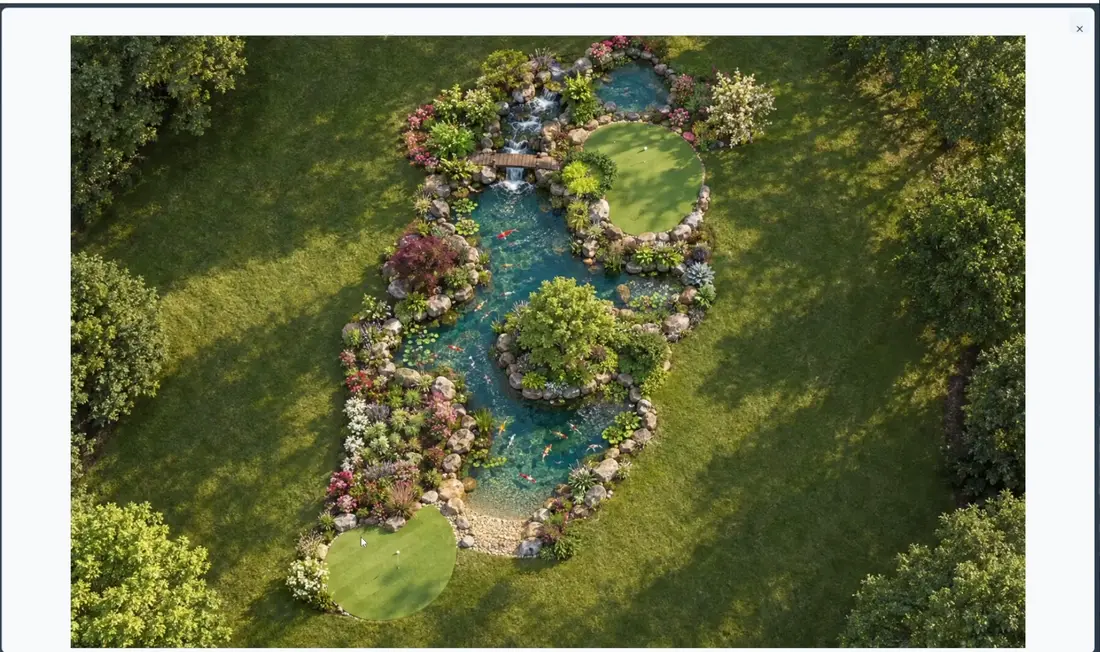
Show the customer a pond in their own yard.
Start with their yard.
Take a photo at the visit or bring in their sketch. Set the scale from a distance you measured and PondTools corrects for the camera angle. Draw the pond where it belongs, or describe it and let the AI draw it.
Show them the finished pond.
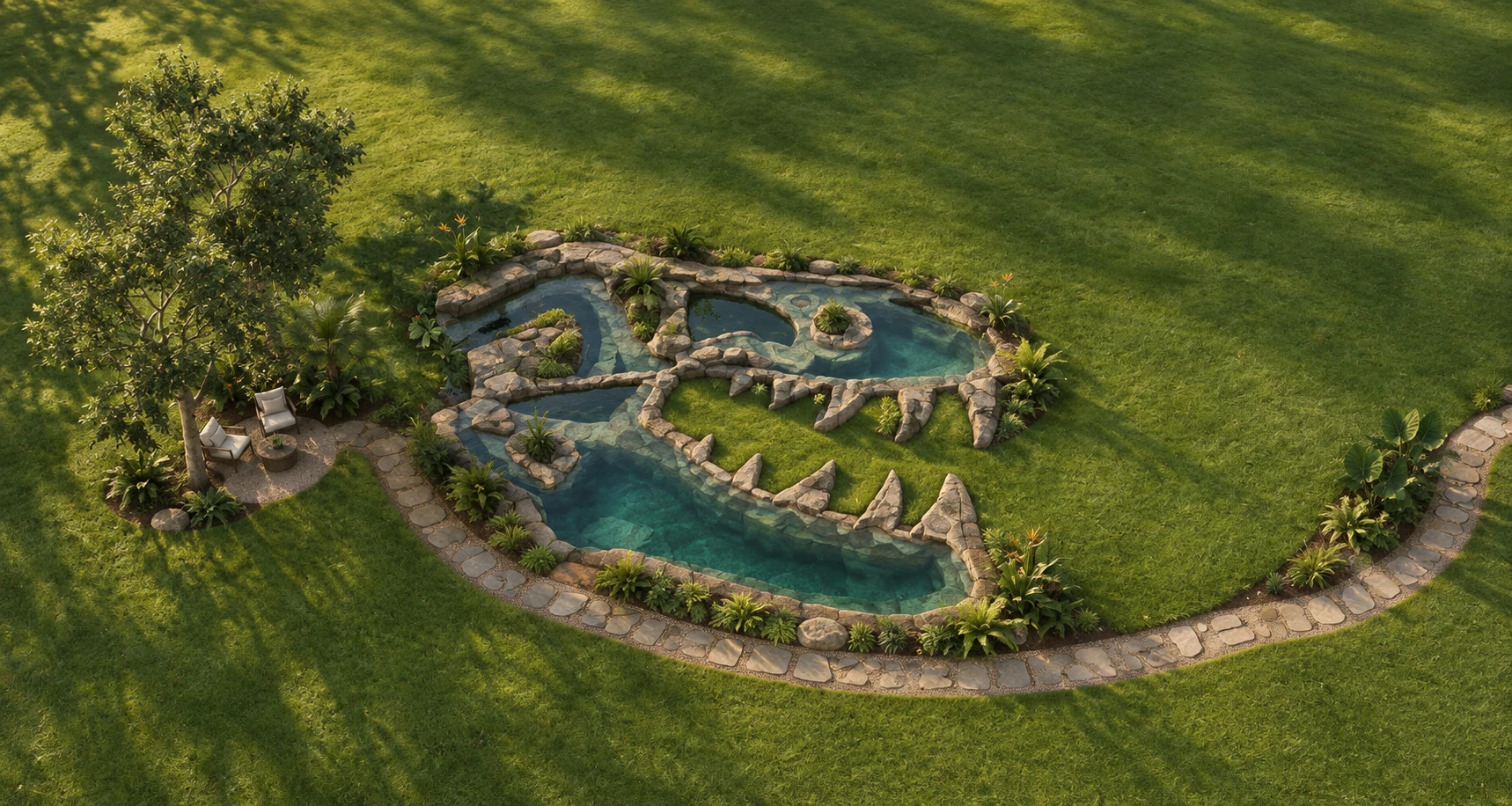
Imagine turns the drawing into a photoreal image of their own yard and an eight-second video, so the customer sees the water, stone and planting before anyone digs.
Price it and win the job.
Buy This Pond lists the parts for the design with an MSRP price on every line. Send the plan to the customer and move the job from Quoted to Approved.
Price the parts before you quote.
Buy This Pond turns the design into a parts list. The pump is chosen for the flow the pond needs at the head it will run against, the skimmer and BioFalls are matched to that flow and the pond’s gallons, and the liner, underlayment and pipe are sized from the dug shape.
It also sizes the six things kits leave out, from dechlorinator to a fill valve, and gives boulder and gravel ranges by the ton. Take the list to your supplier and quote with your own costs.
- Core parts
- Skimmer, filter, pump, underlayment and pipe.
- Add-ons
- Sealants, dechlorinator, bacteria, netting and a fill valve.
- Hardscape
- Boulders and gravel, in tons.
Core Components
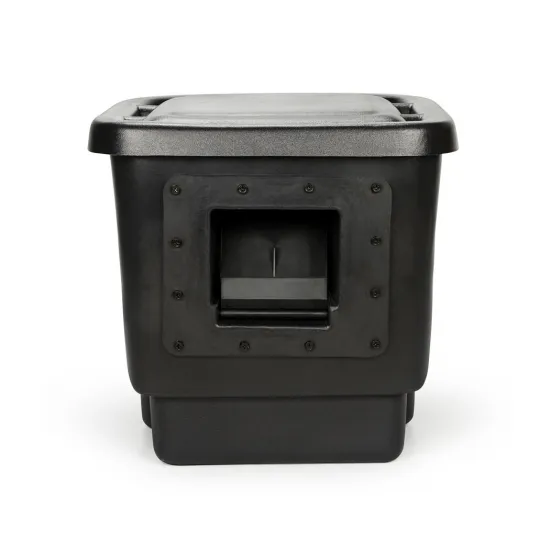 Signature Series 200 Pond SkimmerMechanical filtration and the pump chamber.$479.99
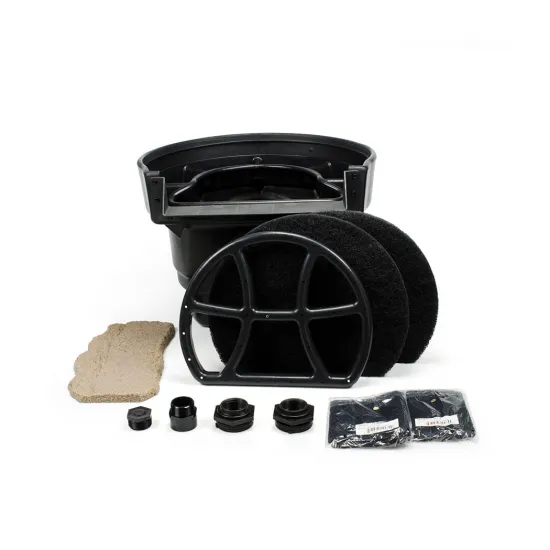 Signature Series 2500 BioFalls® FilterBiological filtration and the waterfall head.$859.99
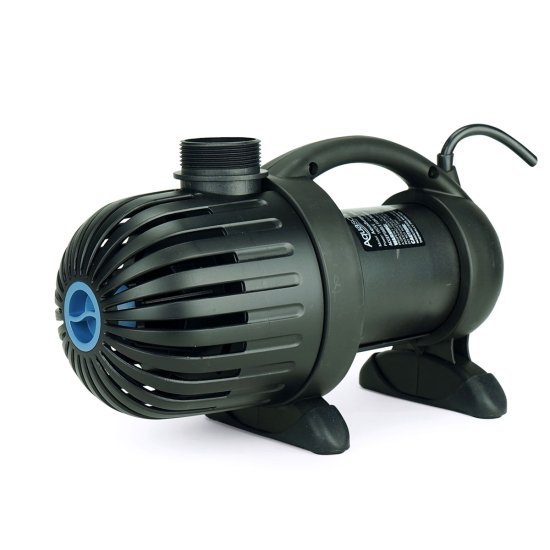 AquaSurge® 3000 Pond PumpDelivers 2,353 GPH at 10.0 ft of head.$519.99
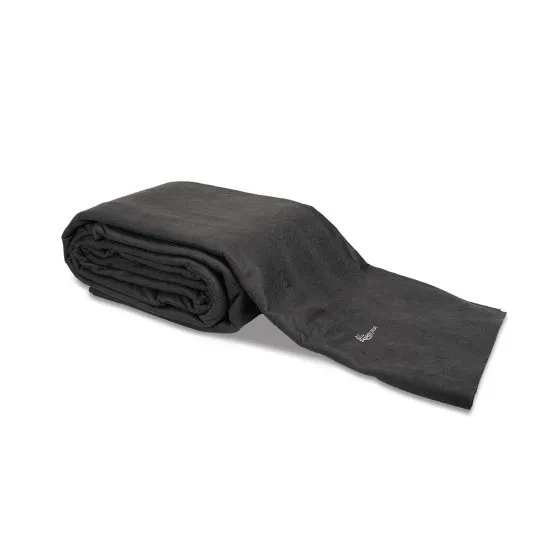 Heavy-Duty Pond Underlayment8′ × 10′ precut, 7 pieces overlapped at $49.60 each.$347.20
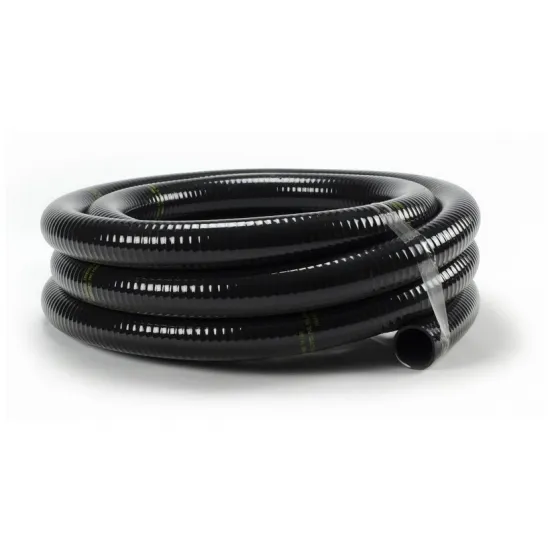 Flexible PVC Pipe1 1/2″ × 25′ for 20 ft of run.$94.99
- 45 mil EPDM pond liner, cut from a rollAbout 21 by 25 ft in one piece, larger than the biggest boxed liner.Priced by the dealer
Six things the kit leaves out
- Foam sealant $21.99
- Dechlorinator $14.99
- Starter bacteria $17.99
- Pond netting $34.99
- Silicone sealant $15.99
- Fill valve $59.99
Yes, even a T-Rex.
Describe the pond in plain words and the AI draws it. It finds a matching shape in its library of real drawings, turns it into a pond with floors and dry islands, and shows you a preview. Nothing changes until you apply it, and you can undo it afterwards.
The Tyrannosaurus Pond is a saved design you can open in Projects, with contours, a ledge and a deeper floor. Change the surroundings, look at it in Studio, then turn it into a photoreal image and video.
Save each version so you can show the customer the options side by side.
Try the Tyrannosaurus Pond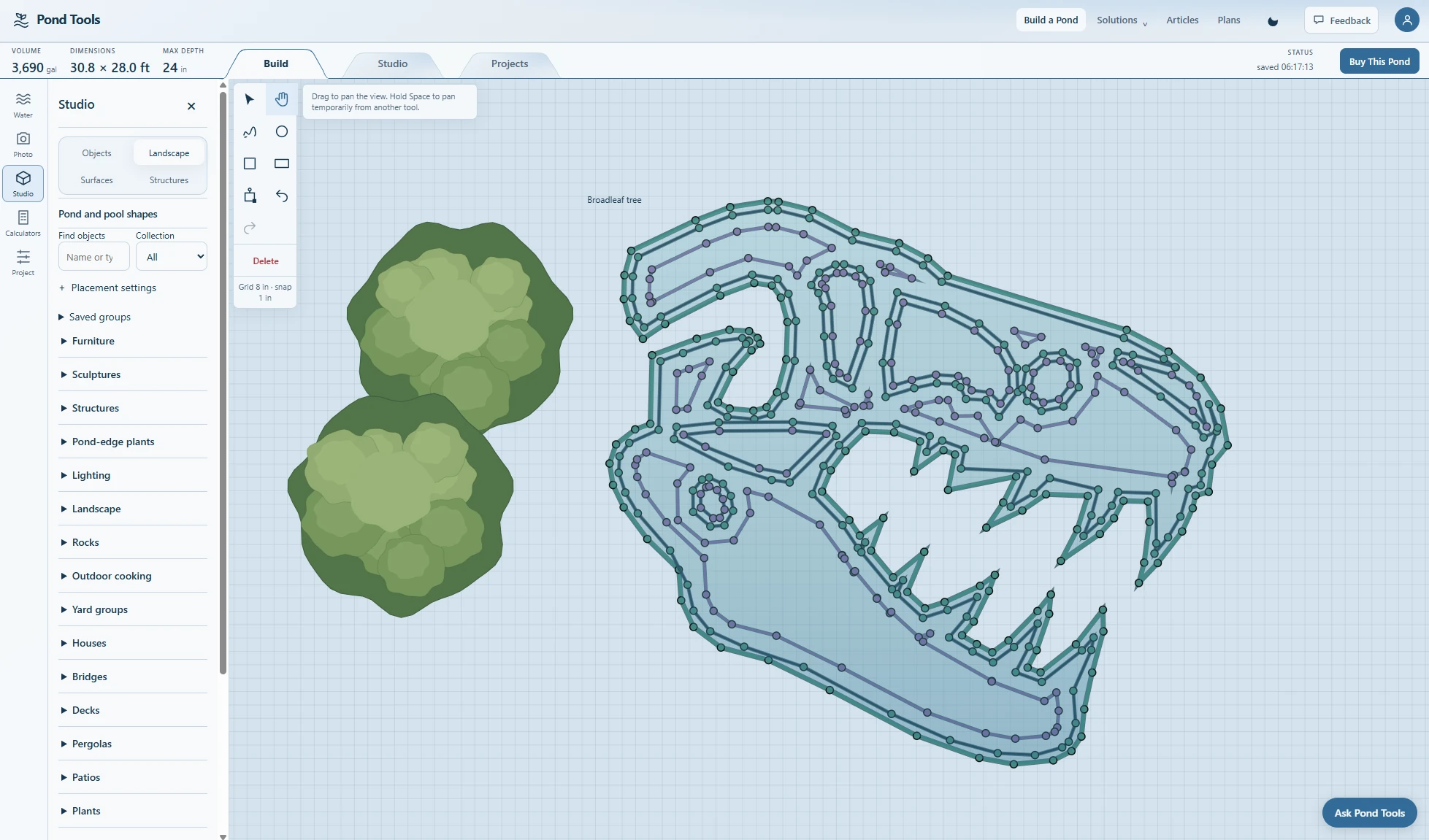
Keep every job and customer in one place.
Open PondTools in the browser at the site. Place the pond on the real yard photo, show the customer how much room it takes and adjust it together, then look around the same layout in 3D in Studio.
Attach the customer to the saved project with their name, email, phone, address and notes. Move each job through New, Designing, Quoted, Approved and Complete, and find it again when they call back.
Save the image and the video to send to the customer, print the project report, or export the pond file to share it or keep a backup.
Open your customer projects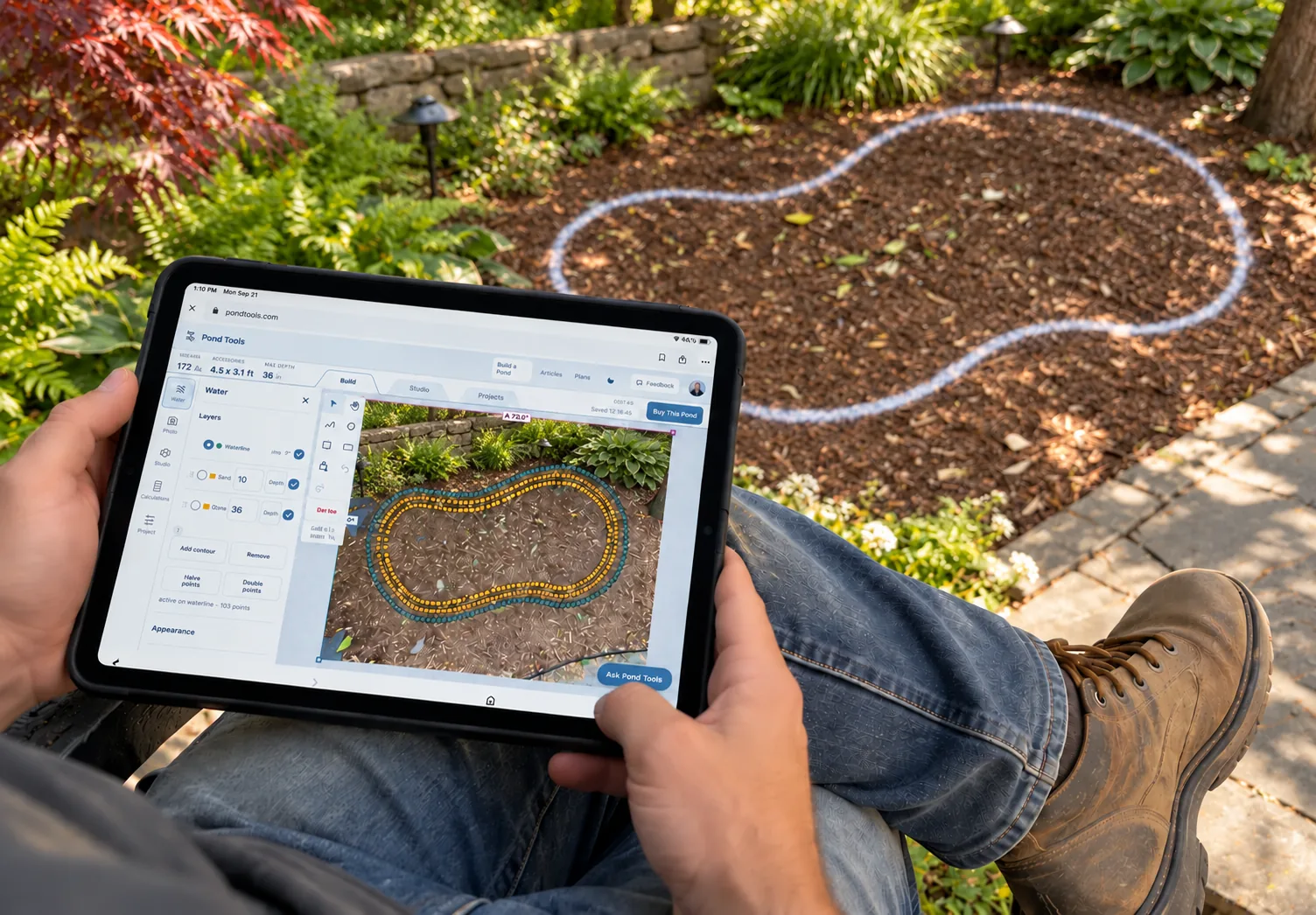
Tools for planning the job.
Planning your projects
Can I start with a drawing instead of a yard photo?
Yes. Import the drawing, set its scale from a known measurement and trace the pond. Add the depths and shelves, and the plan gives you the volume, the parts list and the 3D view. You can also attach a sketch when you ask the AI for a design.
Can the customer see the finished pond?
Yes. Imagine turns the design into a photoreal image of their yard and an eight-second video of it. Save separate versions of the design to show them different options.
What can I use when preparing a quote?
Buy This Pond lists the core parts at MSRP, the add-ons kits leave out, and boulder and gravel ranges. Use them with the volume, dimensions and liner size, and your own costs, to build the estimate.