Water Gardens and Koi
Design a pond for your garden and your fish.
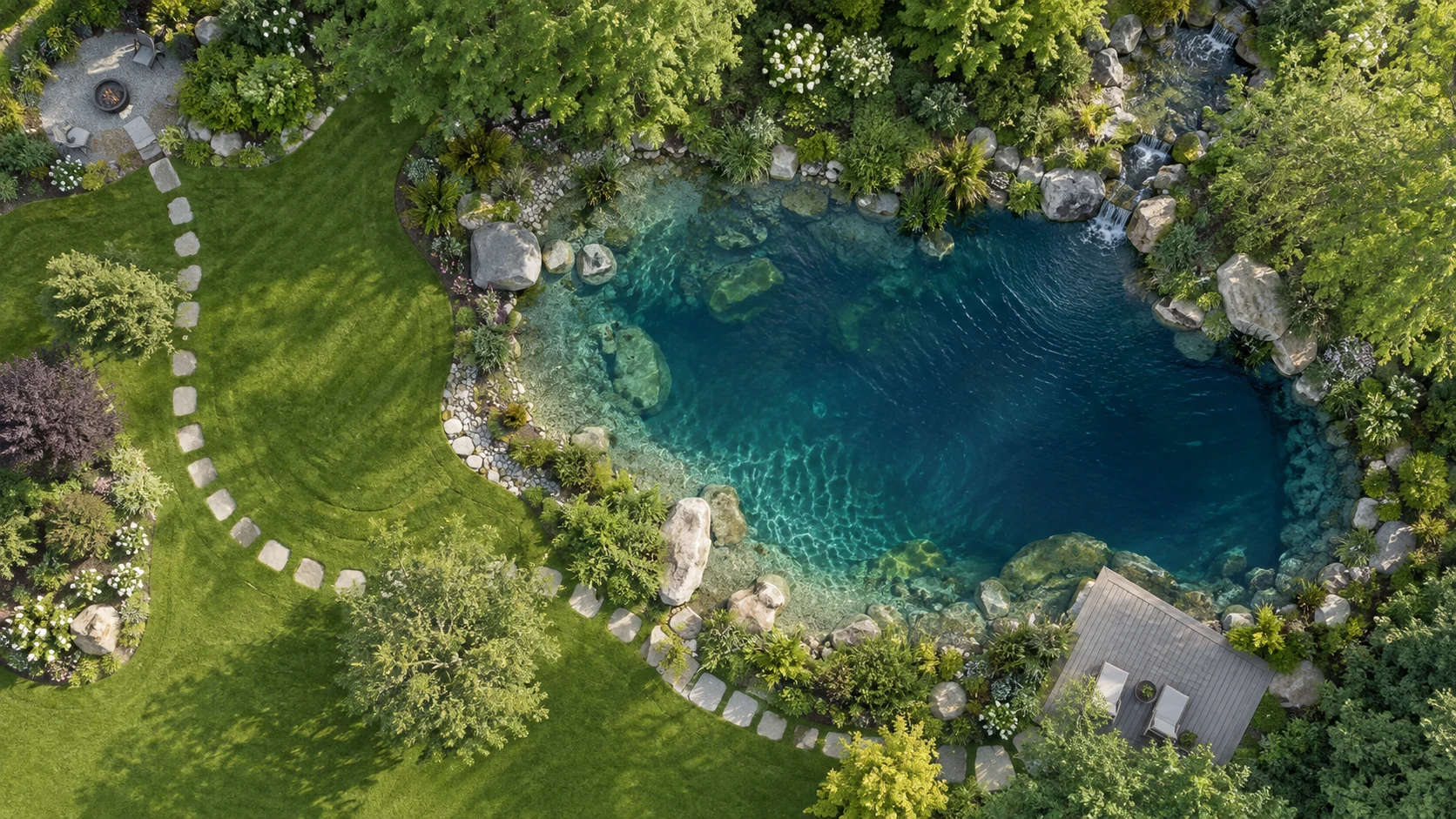
See it in PondTools
See your pond before you build it.
Begin with your space.
Photograph the garden or sketch the pond on paper. Bring it into PondTools, set a known measurement and draw the outline. Try a circle, a rectangle or a softer curve beside the patio.
Explore the design.
Ask PondToolsAI to help shape the pond and arrange planting or rocks. Adjust the layout yourself, create an AI concept image and compare how the pond could sit in your garden.
Look below the waterline.
Add shelves and deeper areas, then open the design in Studio. Move around the pond in 3D and inspect the basin, plants and equipment as part of the same setting.
Before the first purchase
Choose equipment around the design.
Use the pond dimensions to size the liner and plan its overlap. Work through pump flow and lift, then compare equipment in the shopping tools. Account for the pond’s shape, depth and waterfall when choosing what to buy.
Check the shopping guide for hardscape quantities and listed equipment prices. If you are comparing a larger pond with a smaller design, save both versions and look at what each one needs before choosing.
Keep the plan after the build. Return to its dimensions, stocking and water-care tools as you look after the pond, and adjust the project when you make a physical change.
Plan materials and equipment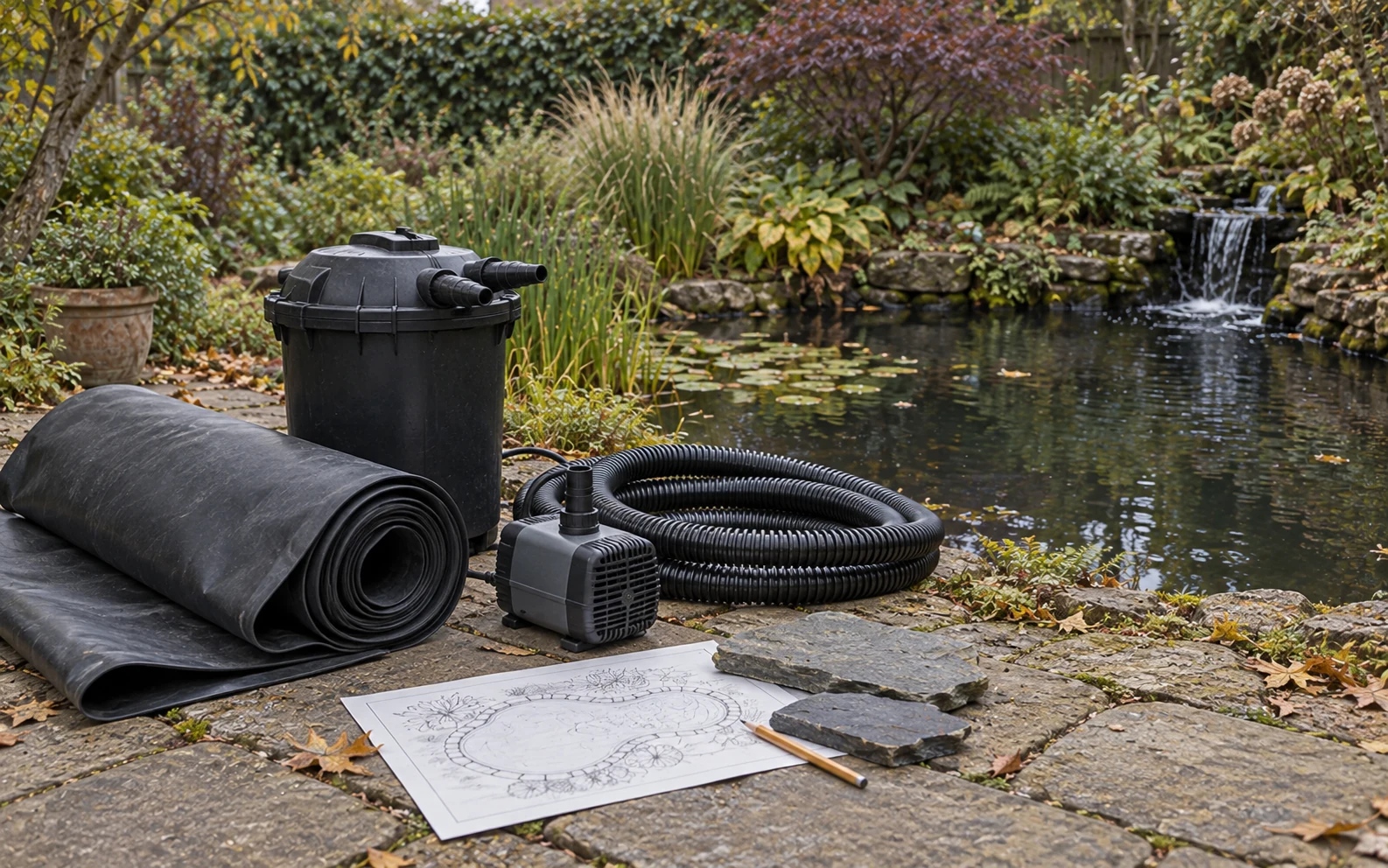
Design for the fish
Make space for fish and planting.
Draw deeper areas for swimming and shelves for planting. Adjust their widths and depths, then check the space in the basin and the amount of water it holds.
Check fish numbers against pond volume with the stocking calculator. Plan the pump and circulation, leave space for the equipment, and arrange rocks and plants around the pond.
Open the golden-ratio koi pond in Projects for a starting point: 1,000 US gallons, a 10-inch-wide shelf at 8 inches deep, and a 36-inch-deep floor. Change the proportions or depth and watch the measurements update.
Try the 1,000-gallon koi pond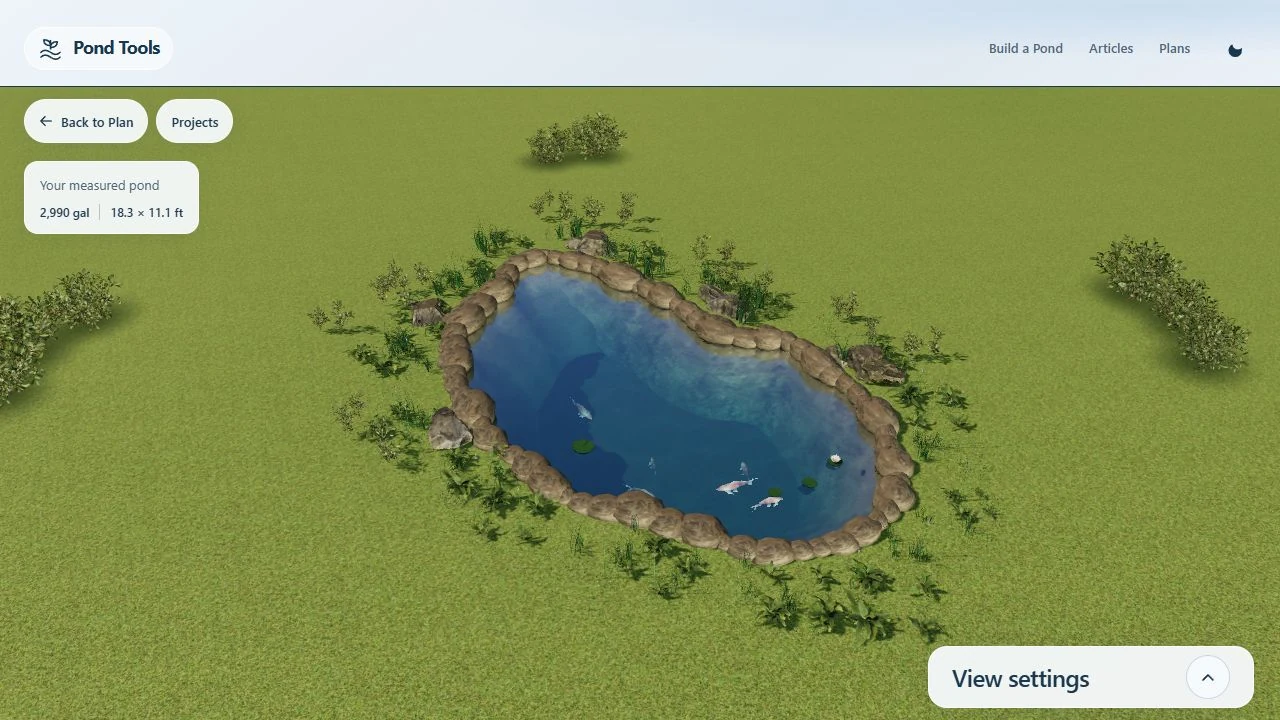
Care tied to your pond
Know the volume. Work out the dose.
Calculate water volume from the outline, shelves and depths in your plan. Use that volume in the care calculators to work out amounts for your pond.
The salt calculator uses the saved pond volume with your current and target concentrations to work out the amount to add. The water-change calculator uses volume and the percentage you choose to calculate how much water to replace.
Calculate how much to prepare and buy before treating the pond. Update the plan if you change its size or depth so the care tools use the revised volume.
- Salt
- Calculate the amount for a concentration change.
- Water changes
- Convert a percentage into a water quantity.
- Fish stocking
- Consider fish load alongside pond volume.
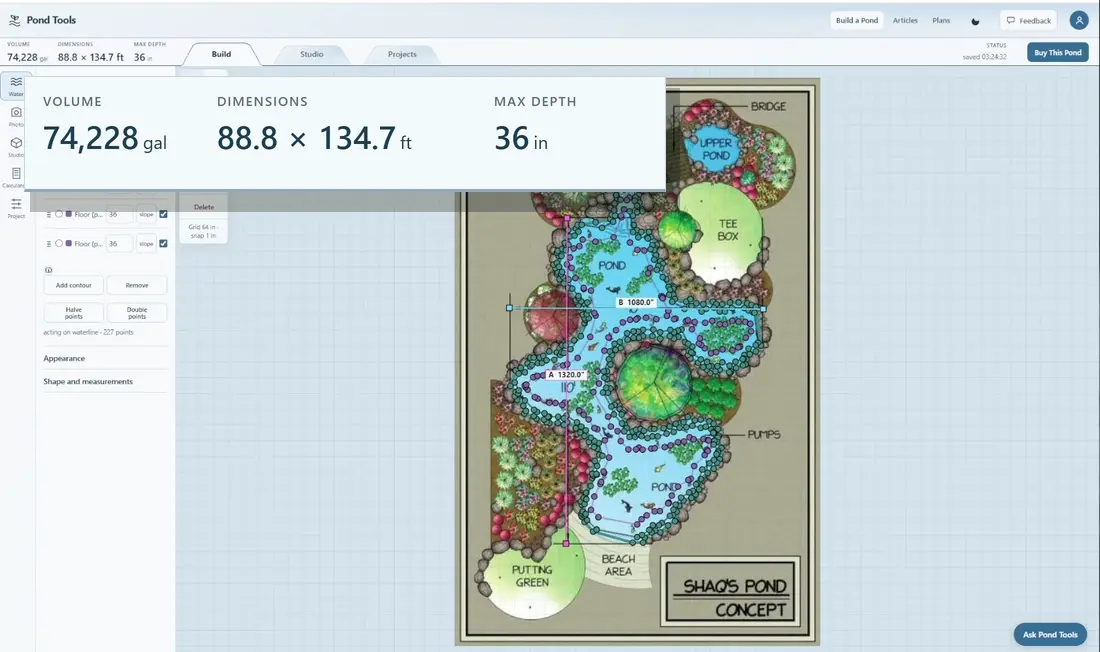
Tools for your pond.
Planning your pond
Can I plan a pond without a drawing?
Yes. Start with a circle, rectangle or freehand outline in the editor. You can also open a starter in Projects, or photograph your garden and draw the pond over the image.
How do I change the shelves and depth?
Add depth contours inside the waterline and set their depths. Move the points to change the shelf width or basin shape, then inspect the result in Studio and check the revised volume.
How does my pond reach the care calculators?
Save the pond after setting its scale and depths. The salt and water-change calculators can read the saved pond volume, and you can review the value before entering the rest of the calculation.